 TechIDaily
Getting Started with StretchGoGo: Apple Watch Setup & Sensor Calibration
A complete practical guide to establishing your physical desk baseline, granting minimal sensor permissions, and calibrating Apple Watch CoreMotion telemetry.
When you sit down to write code, your arms assume a signature biomechanical orientation: forearms resting parallel to the desk surface, wrists slightly extended over the home row, and shoulders internally rotated.
StretchGoGo turns your Apple Watch into a precision desk ergonomics sensor. However, every developer's physical anatomy and furniture setup differs: a 6'2" engineer using an angled split keyboard has a different resting forearm pitch than a 5'4" designer using a flat Magic Keyboard.
This guide provides the definitive step-by-step procedure to configure, calibrate, and verify your StretchGoGo sensor baseline in under three minutes.
1. Prerequisites and System Requirements
Before beginning the initial calibration, verify that your hardware meets the minimum runtime requirements:

- Apple Watch: Apple Watch Series 6, SE (2nd generation), Ultra, or later running watchOS 10.0+.
- Companion iPhone: iPhone XS or later running iOS 17.0+.
- Bluetooth & Local Network: Ensure Bluetooth is toggled on both devices for initial configuration handshake.
2. Granting Minimal Required Permissions
StretchGoGo adheres to a strict on-device privacy guarantee. The app does not require access to your GPS location, contacts, or microphone.

Upon launching the companion iPhone app for the first time:
- Motion & Fitness: Tap "Allow" when prompted for
CMDeviceMotionaccess. This permits the Apple Watch to evaluate gyroscope and accelerometer vectors locally. - Apple Health (Optional): If you wish StretchGoGo's active micro-breaks to count toward your daily Stand Ring in Apple Fitness, grant write access for
Stand HoursandMindful Minutes. - Notifications: Allow Time-Sensitive Notifications to receive gentle haptic taps when a 90-second posture reset is due.
3. The 30-Second Desk Calibration Routine
Do not calibrate StretchGoGo while walking or holding a coffee mug. Calibration must take place directly at your active workstation.
Step 1: Assume Your Natural Working Posture
Sit in your task chair with your feet flat on the floor. Place both hands naturally on your keyboard with your fingers resting on the home row keys (ASDF and JKL;). Maintain your normal screen-gazing posture.
Step 2: Initiate Calibration on the Watch
On your Apple Watch, open the StretchGoGo app and scroll to Settings > Calibrate Baseline. Tap "Start Calibration".
Step 3: Hold Position for 10 Seconds
The watch will emit a gentle preparatory tick. Keep your hands resting in your typing position while the app collects 100 accelerometer samples to calculate your neutral gravity vector:
$$\vec{g}_{\text{baseline}} = \frac{1}{N} \sum_{i=1}^{N} \begin{bmatrix} g_{x,i} \\ g_{y,i} \\ g_{z,i} \end{bmatrix}$$
Once complete, the watch will emit a distinctive double haptic pulse confirming your baseline wrist pitch (typically $-8^{\circ}$ to $-16^{\circ}$) is saved.
4. Setting Your Sensitivity Threshold
Under Settings > Alert Sensitivity, you can configure how aggressively StretchGoGo detects posture collapse:
- Gentle (Default): Triggers only after 45 minutes of continuous static tendon load or when wrist extension exceeds $+25^{\circ}$ for more than 5 consecutive minutes. Recommended for most knowledge workers.
- Strict: Triggers every 25 minutes regardless of typing burst length. Ideal for individuals rehabilitating from acute forearm tendonitis.
- Silent Logger: Disables active haptic prompts during working hours, recording telemetry silently for end-of-day ergonomic review in the iPhone companion dashboard.
5. Troubleshooting Sensor Discrepancies
Issue: "False Stance Alerts While Using Mouse"
If using an external mouse causes the app to think your wrist is twisted, enable Dominant Wrist Tracking in the iPhone companion app. Specify which wrist wears the Apple Watch (Left or Right) to allow the classifier to mirror coordinate axes accurately.
Issue: "Alerts Not Delivering When Screen is Off"
Ensure Low Power Mode is disabled on watchOS during deep work sessions, as Low Power Mode throttles background sensor polling intervals from 1 Hz down to 0.1 Hz.
6. Daily Best Practices
- Re-calibrate when switching desks: If you move from your home office standing desk to a coffee shop table, run a quick 10-second calibration to account for the altered desk height.
- Band Fit: The Apple Watch band should fit snugly one finger-width above the wrist bone. A loose band allows the watch chassis to tilt independently of your radius bone, distorting pitch angles.
General Ergonomics Disclaimer: StretchGoGo is a general wellness and posture coaching utility. It is not a clinical medical diagnostic device and does not treat carpal tunnel syndrome, cervical radiculopathy, or repetitive strain injuries. Consult a qualified physical therapist for persistent pain.
StretchGoGo In-App Mobility Guide
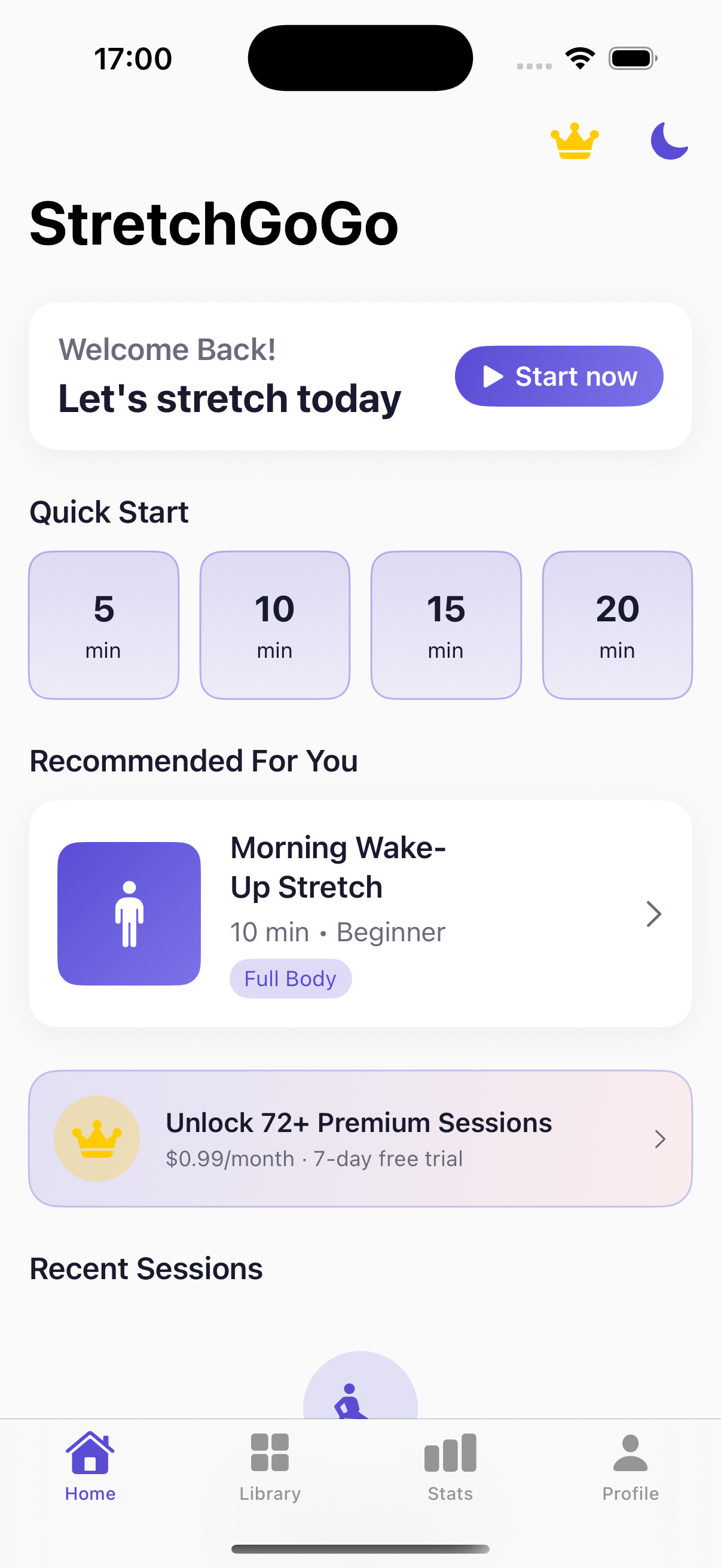
Daily 90-second postural resets calibrate thoracic extension and lumbar decompression directly from the primary iOS interface.