 TechIDaily
Frictionless Tracking: Designing Your iOS 17 Interactive Lock Screen & Home Screen
Complete walkthrough on configuring HabitArcFlow interactive widgets, Lock Screen circular gauges, and StandBy displays for single-tap zero-friction tracking.
The greatest enemy of sustained personal habit formation is friction. In traditional habit tracking apps, logging a glass of water, a completed workout, or a reading session requires an onerous multi-step sequence: unlock the phone, swipe through home screens, locate the app icon, launch the application, wait for the interface to load, locate the habit item, and tap a checkbox.
Over weeks and months, this subtle cognitive resistance leads to abandoned habits and tracking fatigue.
HabitArcFlow harnesses the full power of iOS 17 Interactive Widgets and WidgetKit AppIntents to transform habit tracking into an instantaneous, single-tap interaction performed directly from your Lock Screen or Home Screen—without ever opening the app.
1. The Architecture of Zero-Friction Habit Logging
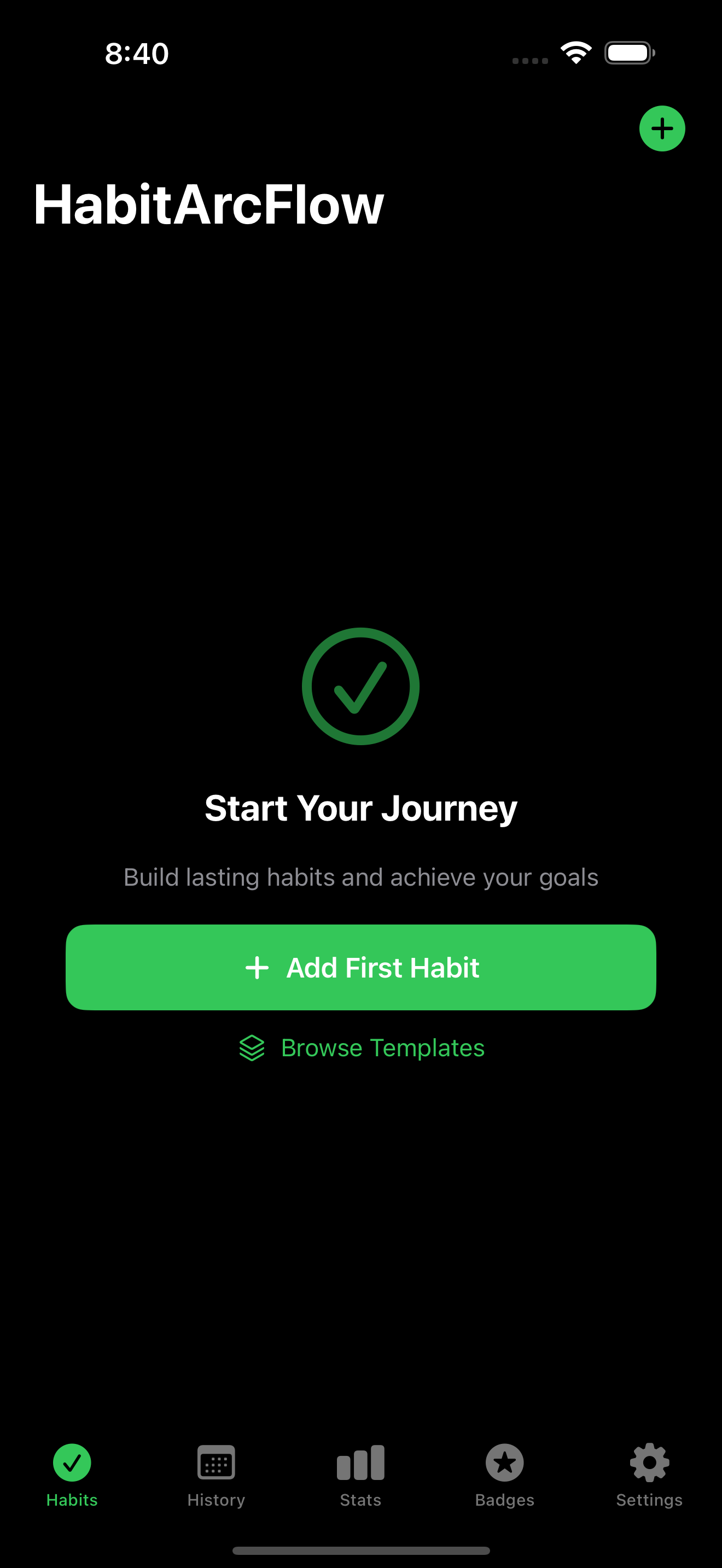
With iOS 17 and later, Apple introduced interactive controls inside WidgetKit. HabitArcFlow utilizes Swift AppIntent protocols to execute atomic CoreData and SwiftData operations directly in the background extension process:

Recommended Lock Screen Configuration:
- Slot 1 (Circular Gauge): Assign to Hydration or Daily Movement. Tapping directly on the widget adds +250ml water without unlocking into the full app. - Slot 2 (Circular Gauge): Assign to Reading / Mindful Minutes. - Slot 3 (Rectangular Widget): Display your Top 3 Priority Habit Arcs with quick-toggle completion icons.
- Long-press your Lock Screen until the wallpaper gallery appears, then tap Customize.
- Select the Lock Screen canvas.
- Tap the Widget Area directly below the digital clock.
- Scroll down the app list and select HabitArcFlow:
- Tap Done in the top-right corner to save.
3. Interactive Home Screen Widget Configurations
On the Home Screen, HabitArcFlow offers three distinct widget form factors:
| Widget Size | Ideal Placement | Key Capabilities |
|---|---|---|
| Small (2x2) | Top right of Primary Home Screen | Single high-priority focus habit with full circular arc progress ring and single-tap toggle |
| Medium (4x2) | Center of Daily Workflow Screen | Displays up to 4 habits side-by-side with individual interactive check-circles and streak badges |
| Large (4x4) | Dedicated Productivity / Dashboard Page | Full daily habit matrix (up to 8 habits) with weekly completion heatmaps and monthly consistency scores |
4. StandBy Mode: The Desktop & Nightstand Companion
When an iPhone running iOS 17+ is charging in landscape orientation (especially on a MagSafe stand), it activates StandBy Mode. HabitArcFlow provides dedicated high-contrast, large-format StandBy widgets:
- Night Mode Red Tint: StandBy automatically shifts HabitArcFlow widgets to monochrome red in low ambient light, preserving night vision.
- Single-Tap Completion from Bed: Tap the remaining habit before sleeping without blinding brightness or app switching.
5. Troubleshooting Widget Refresh & CloudKit Sync
If a widget fails to reflect a recently completed habit:
- Background App Refresh: Ensure Settings > General > Background App Refresh is toggled ON for HabitArcFlow.
- Reload Timelines: Open HabitArcFlow, tap Settings > Widget Diagnostics > Force Reload All Timelines.
- Low Power Mode: Note that iOS throttles widget background refreshes when Low Power Mode is engaged to conserve battery.